> ## Documentation Index
> Fetch the complete documentation index at: https://docs.tunnel.dev/llms.txt
> Use this file to discover all available pages before exploring further.
# Asana
> Learn how to use Tunnel with Asana
## Overview
The Asana integration allows you to create issues in Asana from Tunnel comments. You can also set default issue properties and automatically create issues in Asana with every comment.
## Configuration
You can configure the Asana integration in the [Tunnel Dashboard](https://tunnel.dev/redirect-to/default) by navigating to **Settings > Profile** and scrolling to the **Integrations** section.
### Connect Asana
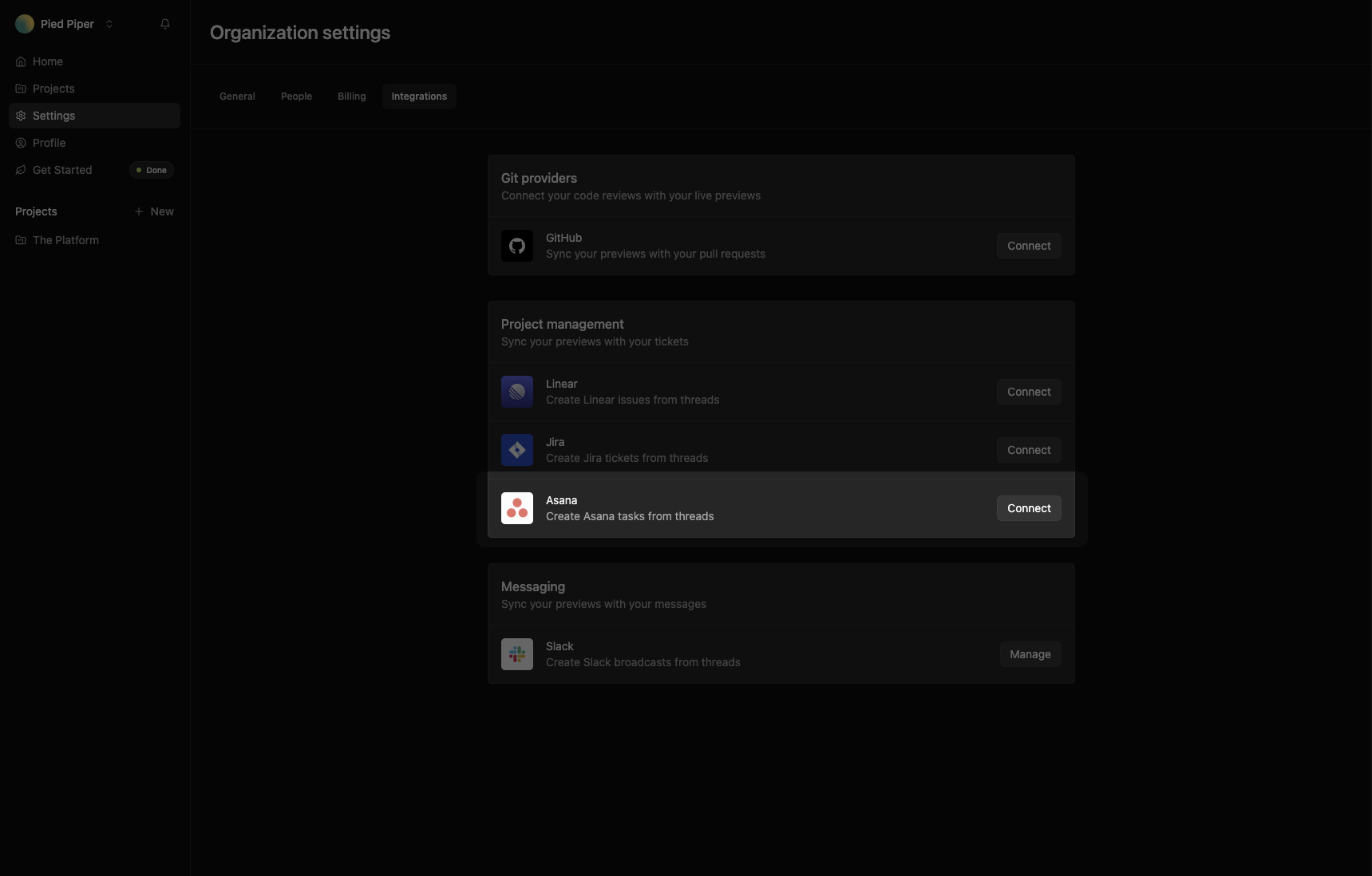
Go to the [Tunnel Dashboard](https://tunnel.dev/settings/integrations). Click **Connect** to connect your Asana organization.
 ## Create issues
### Manually
With your Asana account connected, you can create issues in Asana from Tunnel comments.
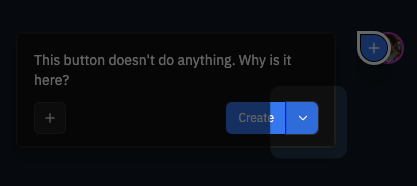
To attach a Asana issue to a comment, open the integrations dropdown menu from the **Create** button. Select **Create issue** in the Asana row.
## Create issues
### Manually
With your Asana account connected, you can create issues in Asana from Tunnel comments.
To attach a Asana issue to a comment, open the integrations dropdown menu from the **Create** button. Select **Create issue** in the Asana row.
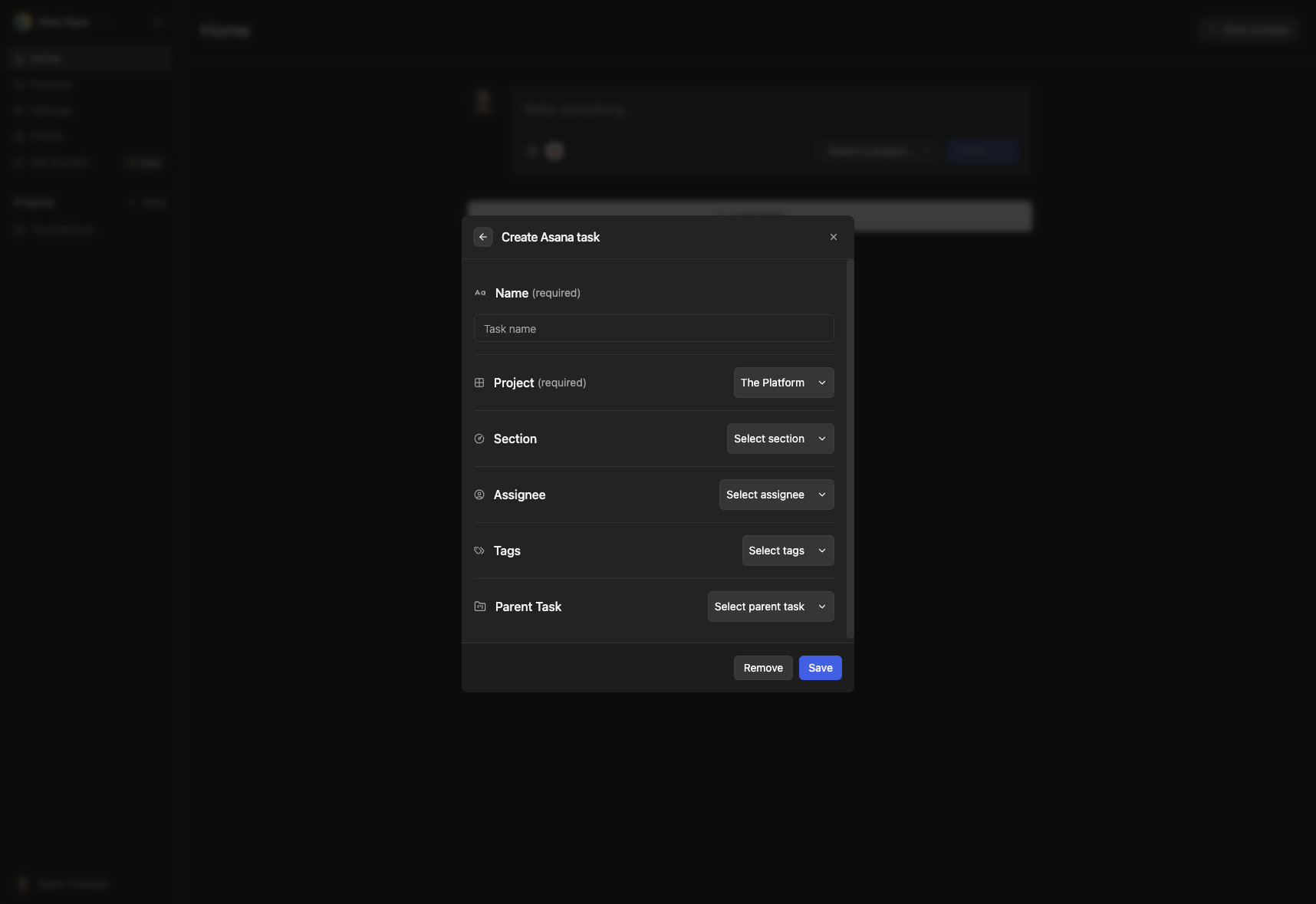
 Set the team, project, status, labels, assignee, and priority for the issue.
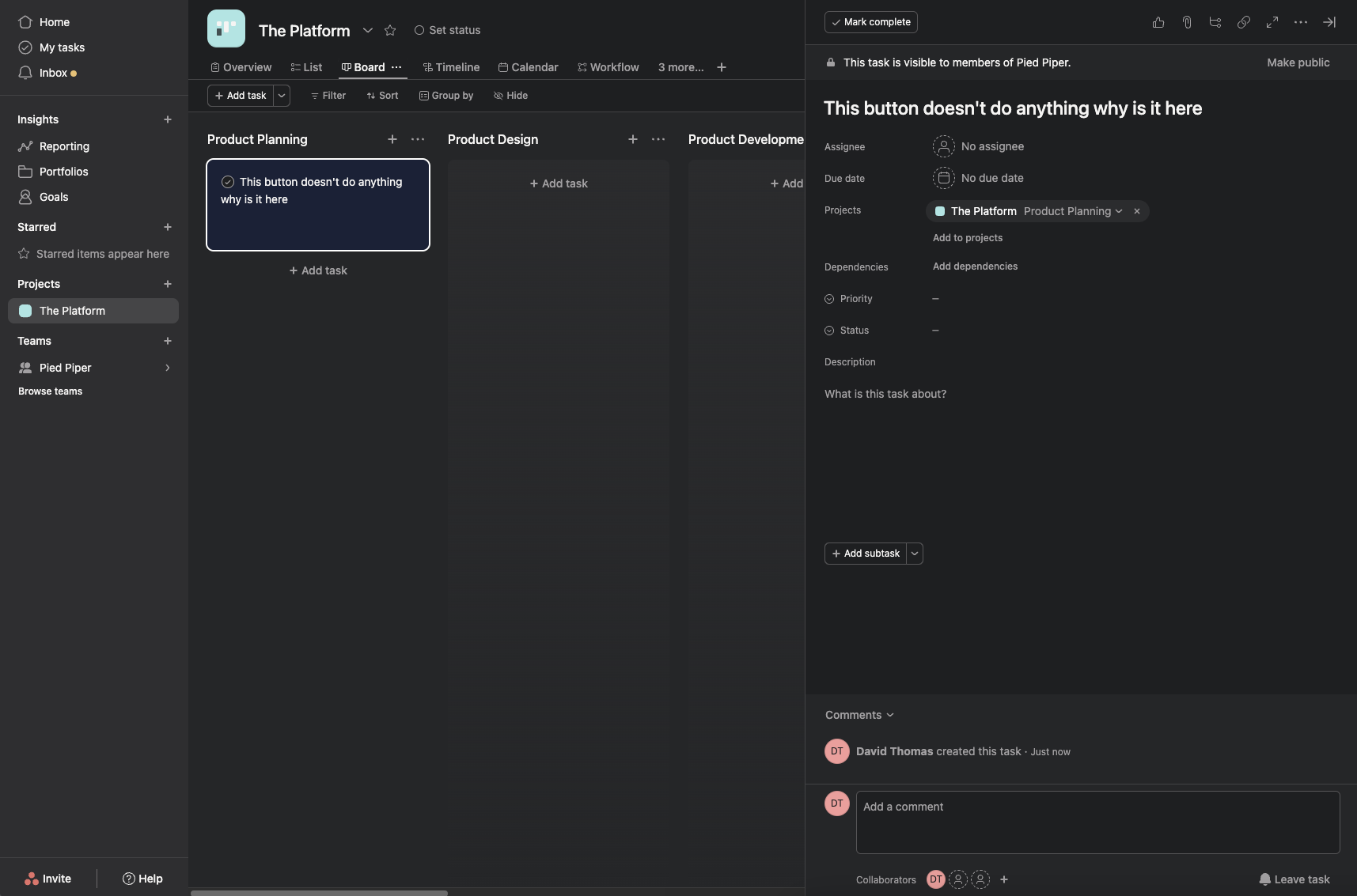
 When you submit the comment, the issue will be created in Asana and a link to the issue will be added to the comment.
 ### Automatically
You can also set default issue properties and automatically create issues in Asana with every comment.
Go to the [Tunnel Dashboard](https://tunnel.dev/redirect-to/default) and navigate to **Settings > Profile**. Scroll to the **Integrations** section and click **Manage** in the **Asana** row.
From here, you can set a default Asana team, and then set default values for project, status, assignee, and priority. You can also set default labels.
### Automatically
You can also set default issue properties and automatically create issues in Asana with every comment.
Go to the [Tunnel Dashboard](https://tunnel.dev/redirect-to/default) and navigate to **Settings > Profile**. Scroll to the **Integrations** section and click **Manage** in the **Asana** row.
From here, you can set a default Asana team, and then set default values for project, status, assignee, and priority. You can also set default labels.
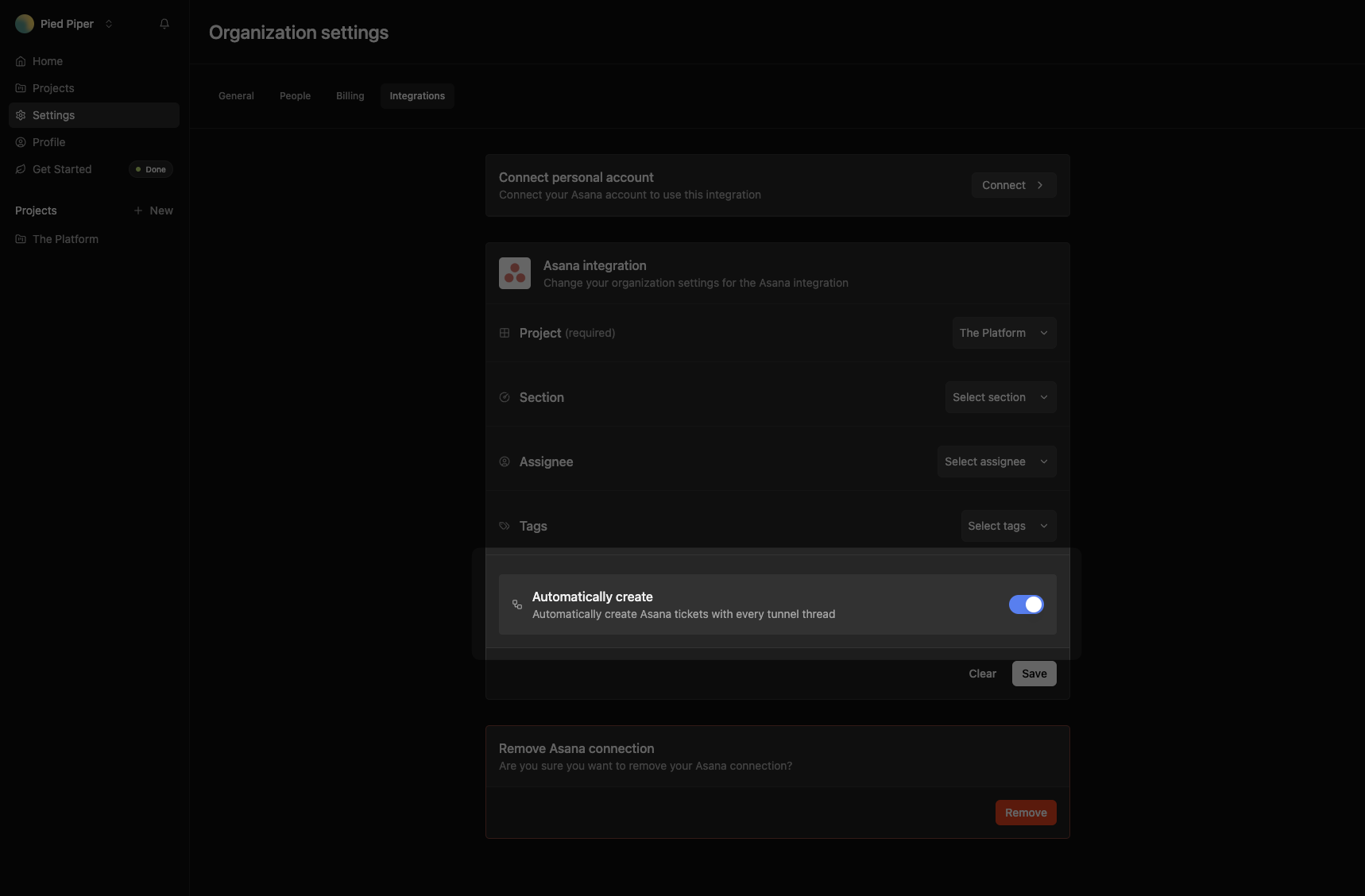
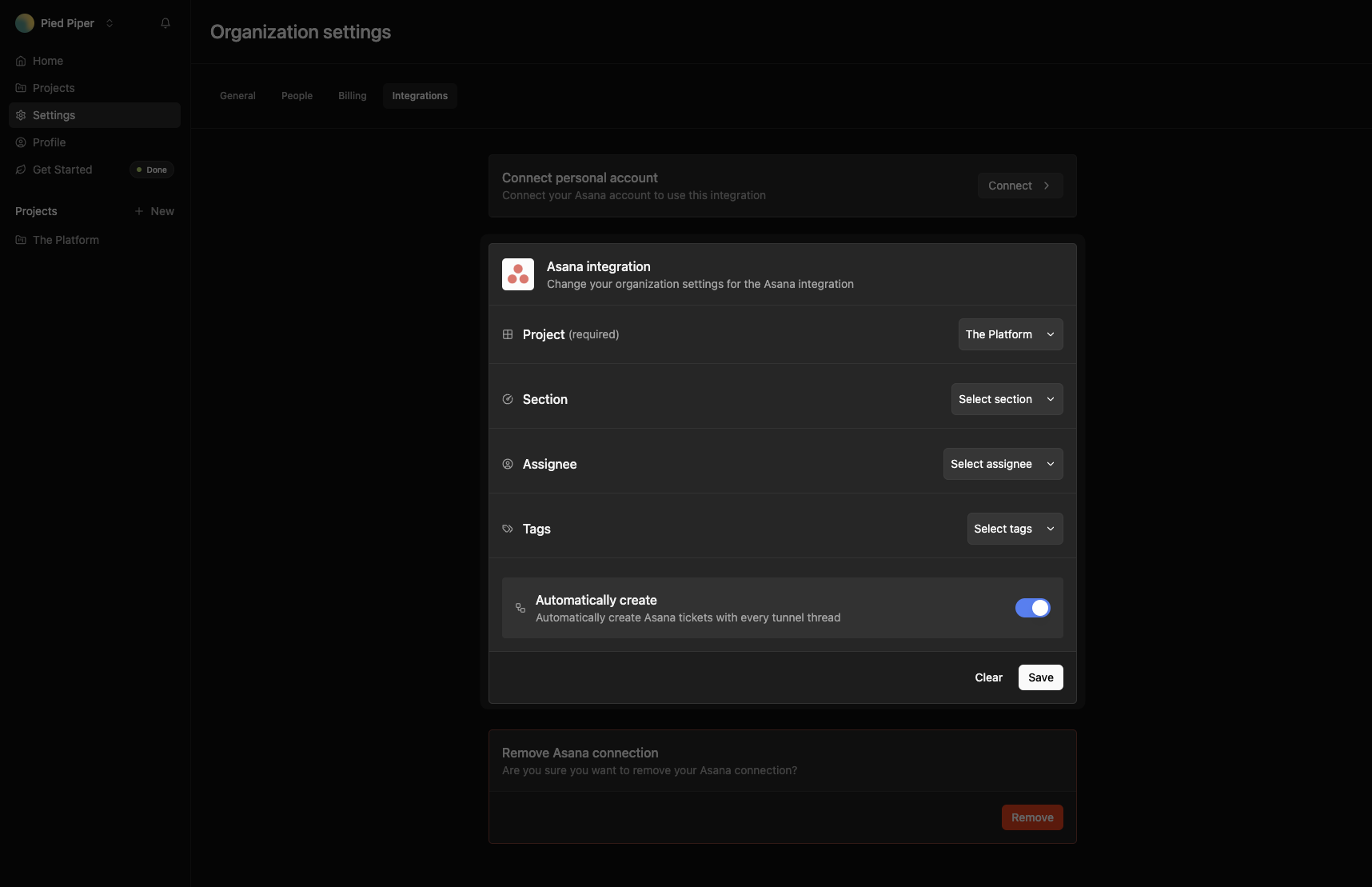 In your default Asana settings, you also have the option to turn on automatic issue creation. This will create a new issue in Asana for every you create comment in Tunnel.
 With your default settings configured, you can easily create an issue in Asana from a comment. To attach a Asana issue to a comment, open the integrations dropdown menu from the **Create** button. Select **Create issue** in the Asana row.
When you submit the comment, the issue will be created in Asana with your default settings and a link to the issue will be added to the comment.
With your default settings configured, you can easily create an issue in Asana from a comment. To attach a Asana issue to a comment, open the integrations dropdown menu from the **Create** button. Select **Create issue** in the Asana row.
When you submit the comment, the issue will be created in Asana with your default settings and a link to the issue will be added to the comment.