> ## Documentation Index
> Fetch the complete documentation index at: https://docs.tunnel.dev/llms.txt
> Use this file to discover all available pages before exploring further.
# GitHub
> Learn how to use Tunnel with Github
## Overview
The Github integration allows you to link GitHub repositories to projects in Tunnel. Once linked, Tunnel will display the status of the comments on the corresponding branch. This allows you to see how many comments have been resolved and how many are still open.
## Configuration
### Connect Github
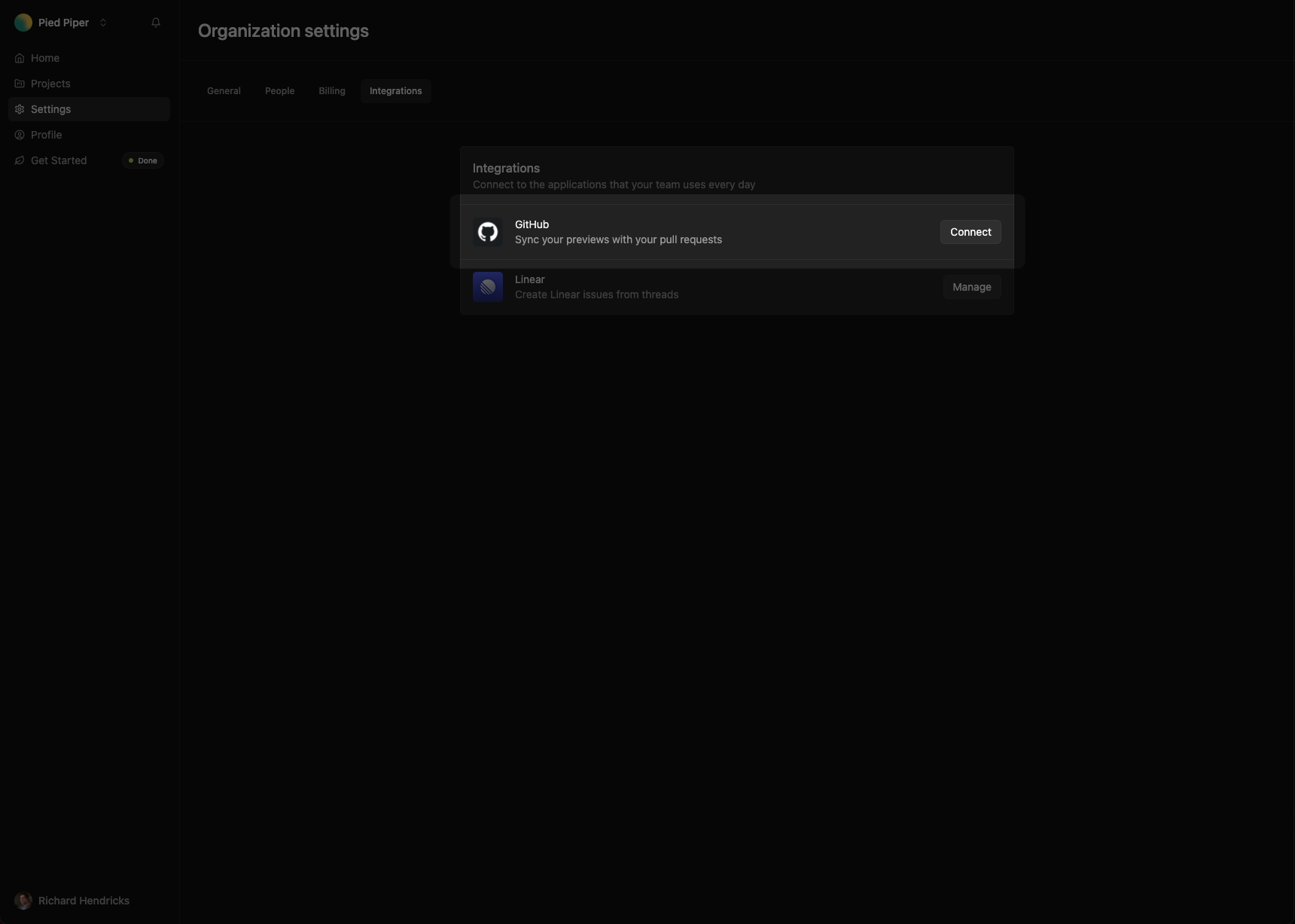
Navigate to [**Settings** > **Integrations**](https://tunnel.dev/settings/integrations) and click the **Connect** button.
 ## Link GitHub repositories to projects
With your Github organization connected, you can link repositories to projects in Tunnel.
### Link a repository to a new project
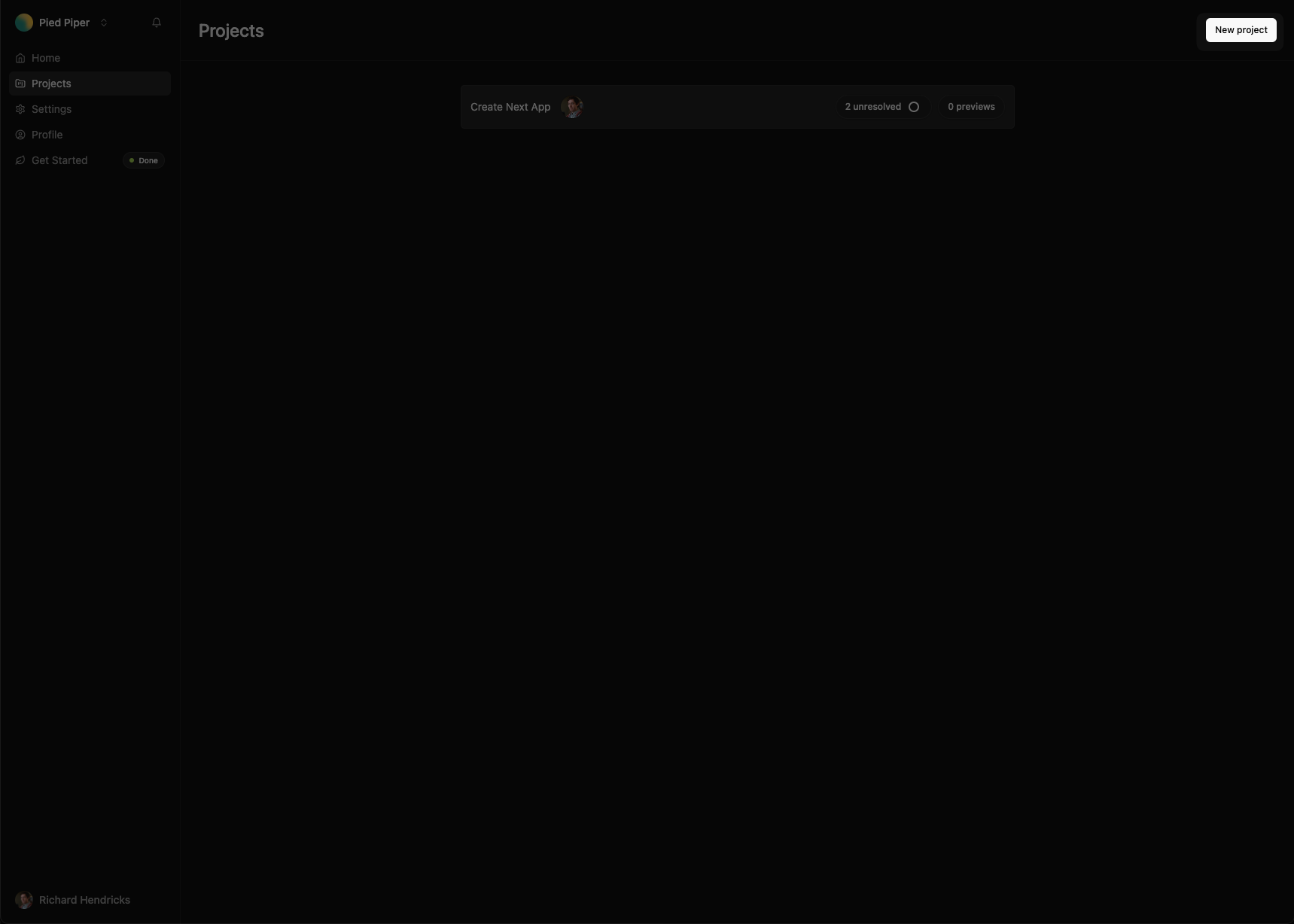
To create a new project and link a repository to it, navigate to
[**Projects**](https://tunnel.dev/projects) and click the **New project**
button.
## Link GitHub repositories to projects
With your Github organization connected, you can link repositories to projects in Tunnel.
### Link a repository to a new project
To create a new project and link a repository to it, navigate to
[**Projects**](https://tunnel.dev/projects) and click the **New project**
button.
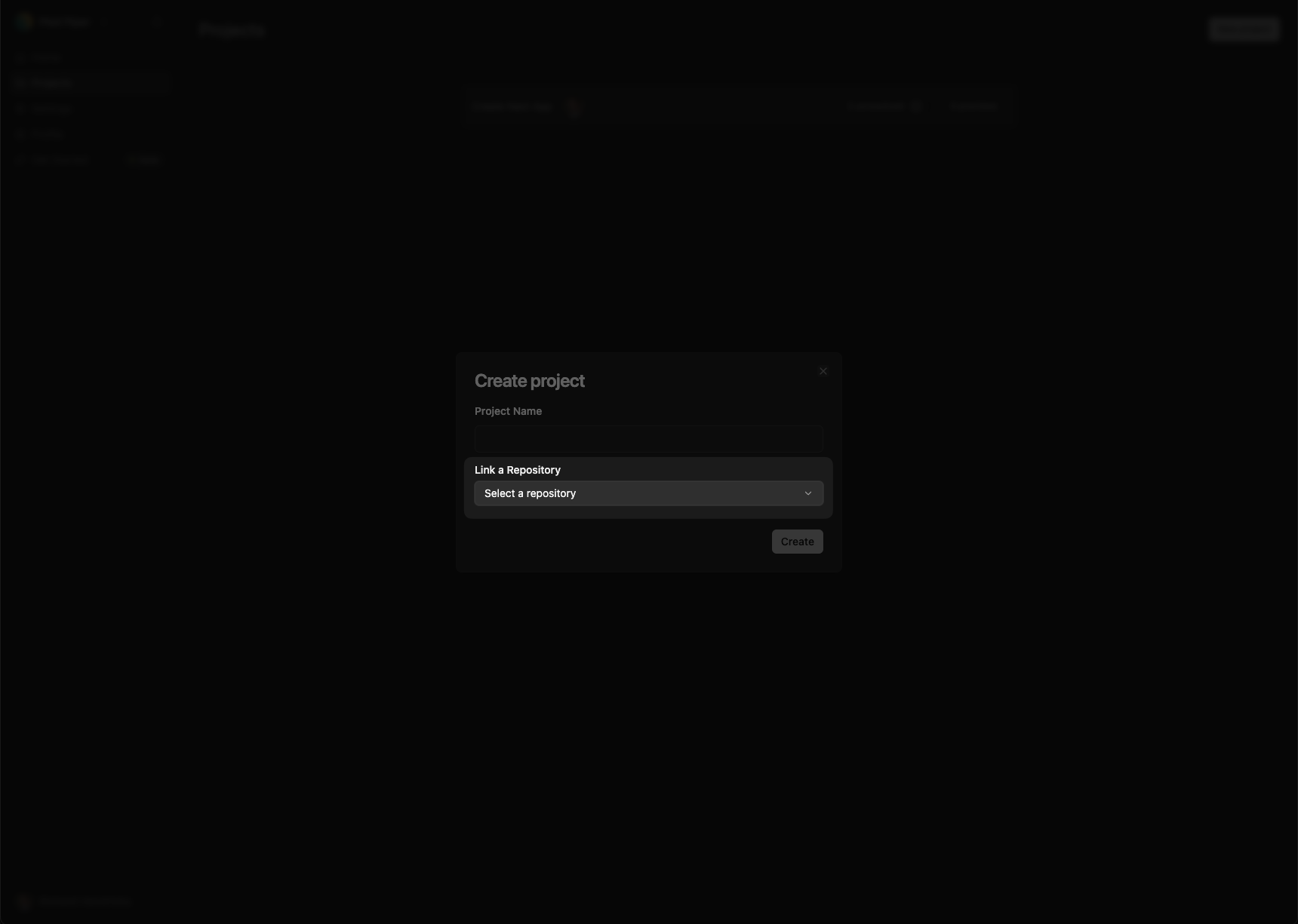
 In the **Link a Repository** field, select the repository you want to link
to the project.
In the **Link a Repository** field, select the repository you want to link
to the project.
 ### Link a repository to an existing project
To link a repository to an existing project, navigate to
[**Projects**](https://tunnel.dev/projects) and select the project you want
to link a repository to. Navigate to the **Settings** tab.
### Link a repository to an existing project
To link a repository to an existing project, navigate to
[**Projects**](https://tunnel.dev/projects) and select the project you want
to link a repository to. Navigate to the **Settings** tab.
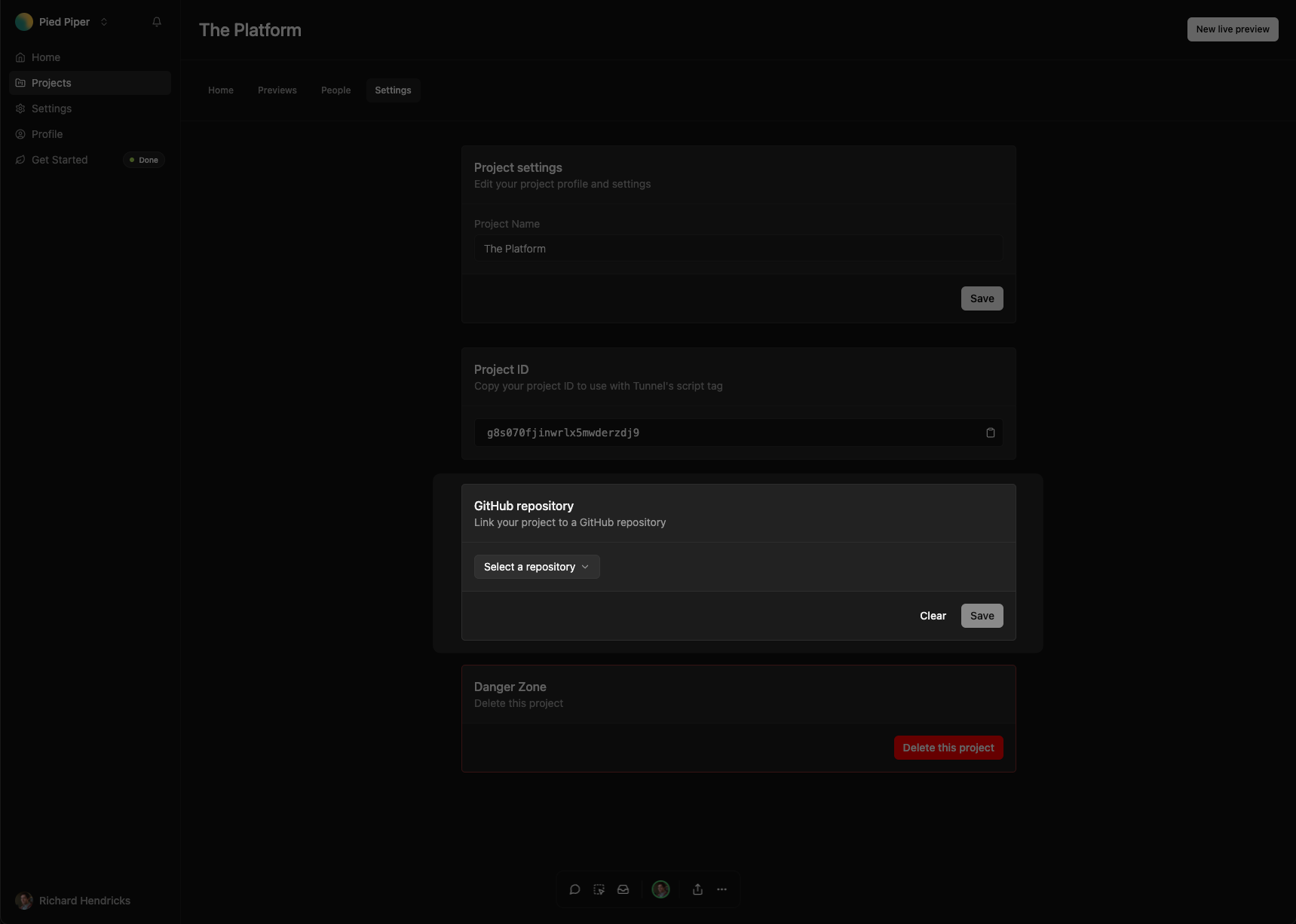
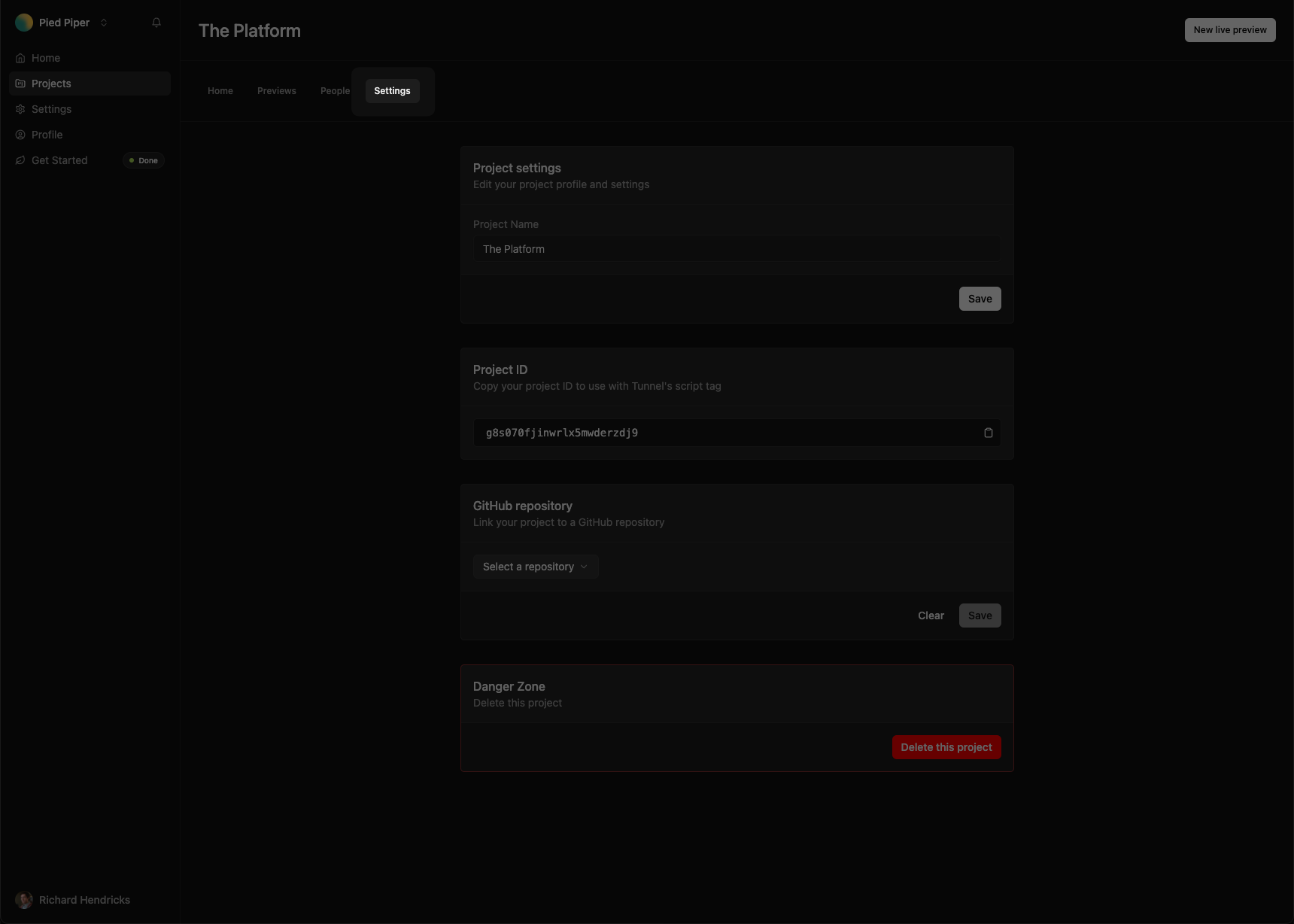 Scroll down to the **GitHub Repository** section and select the repository
you want to link to the project.
Scroll down to the **GitHub Repository** section and select the repository
you want to link to the project.
 ## Adding git metadata to comments
### Development
The Tunnel CLI will automatically detect the repository and branch you are working on and add git metadata to comments.
### Staging and Production
To add git metadata to comments in your hosted environments, you will need to pass a git branch to the `` component or `
```
## Sync Pull Requests
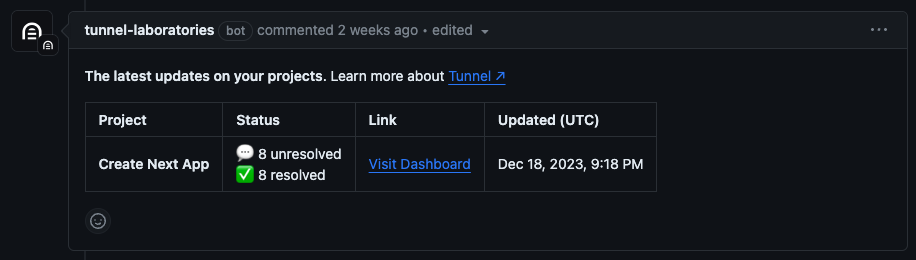
Pull requests receive generated PR messages from the Tunnel bot. The PR message tracks how many comments have been resolved and how many are still open. The PR message is updated every time a comment is resolved or reopened.
## Adding git metadata to comments
### Development
The Tunnel CLI will automatically detect the repository and branch you are working on and add git metadata to comments.
### Staging and Production
To add git metadata to comments in your hosted environments, you will need to pass a git branch to the `` component or `
```
## Sync Pull Requests
Pull requests receive generated PR messages from the Tunnel bot. The PR message tracks how many comments have been resolved and how many are still open. The PR message is updated every time a comment is resolved or reopened.