> ## Documentation Index
> Fetch the complete documentation index at: https://docs.tunnel.dev/llms.txt
> Use this file to discover all available pages before exploring further.
# Slack
> Learn how to use Tunnel with Slack.
## Overview
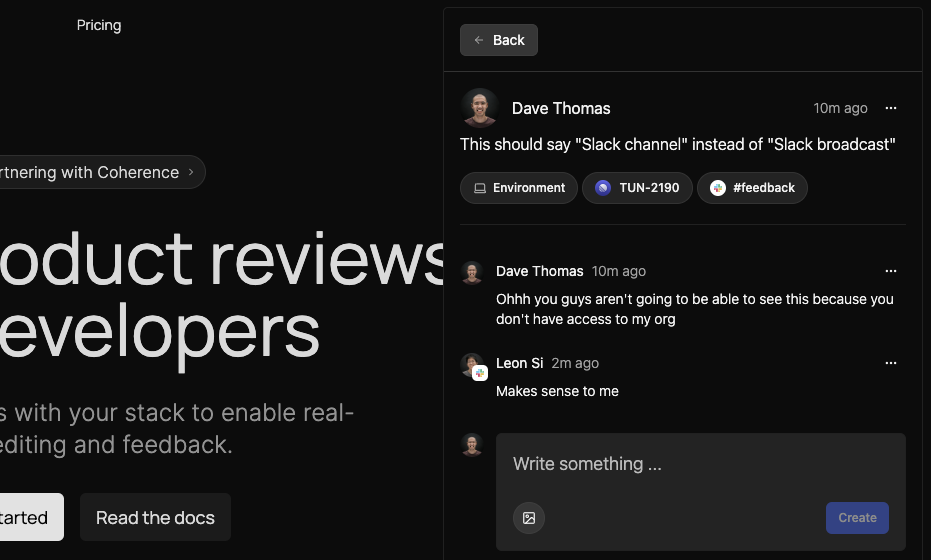
The Tunnel Slack integration allows you to link Slack channels to projects in Tunnel. Once linked, Tunnel will send a broadcast for each new comment in the linked Slack channel. This allows you to respond to feedback directly from Slack, with two-way synced threads and a resolve button to mark the comment as resolved.
## Configuration
### Connect Slack
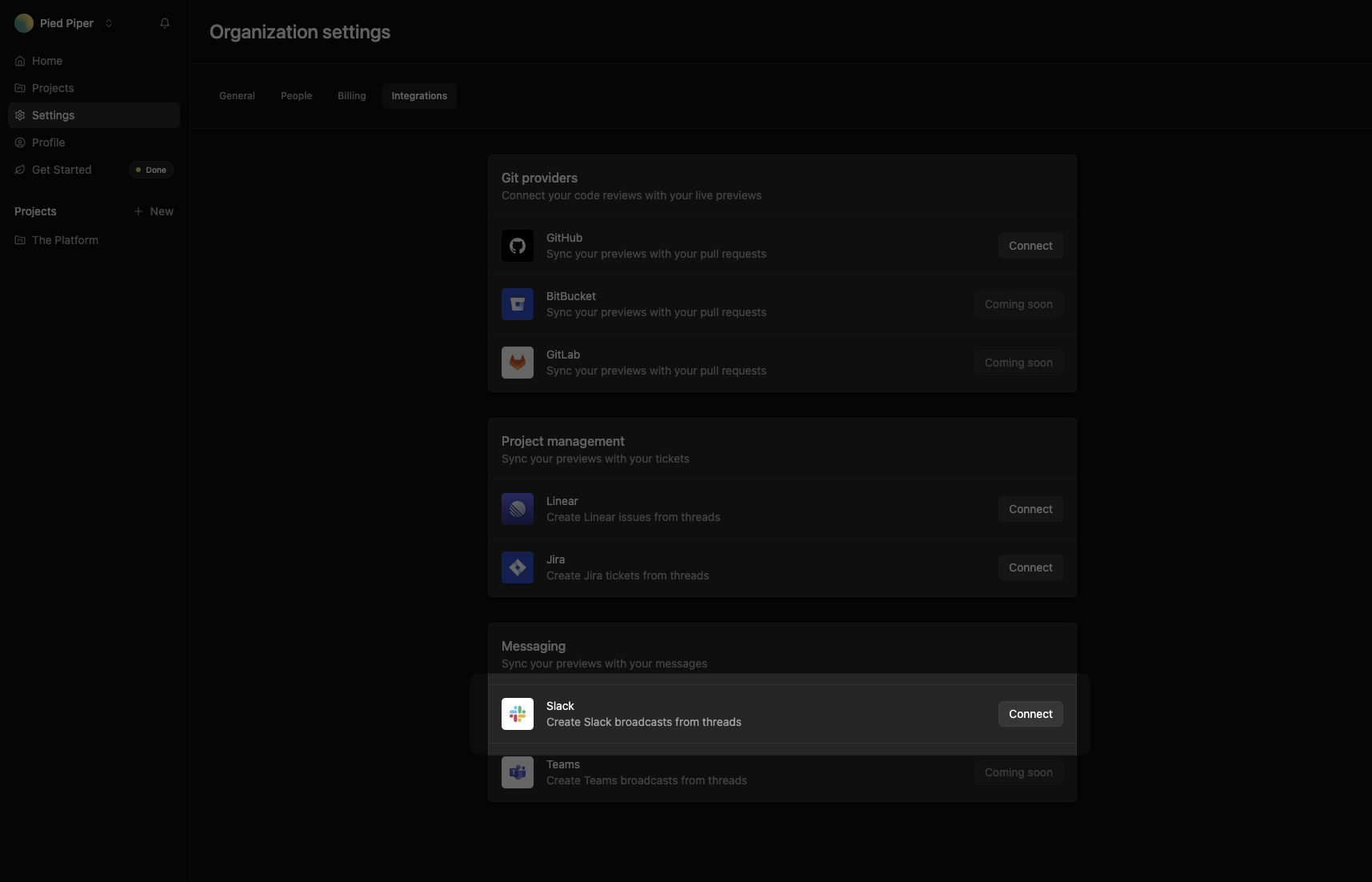
Navigate to [**Settings** > **Integrations**](https://tunnel.dev/settings/integrations) and click **Connect**.
 ## Link Slack channels to projects
With your Slack organization connected, you can link channels to projects in Tunnel.
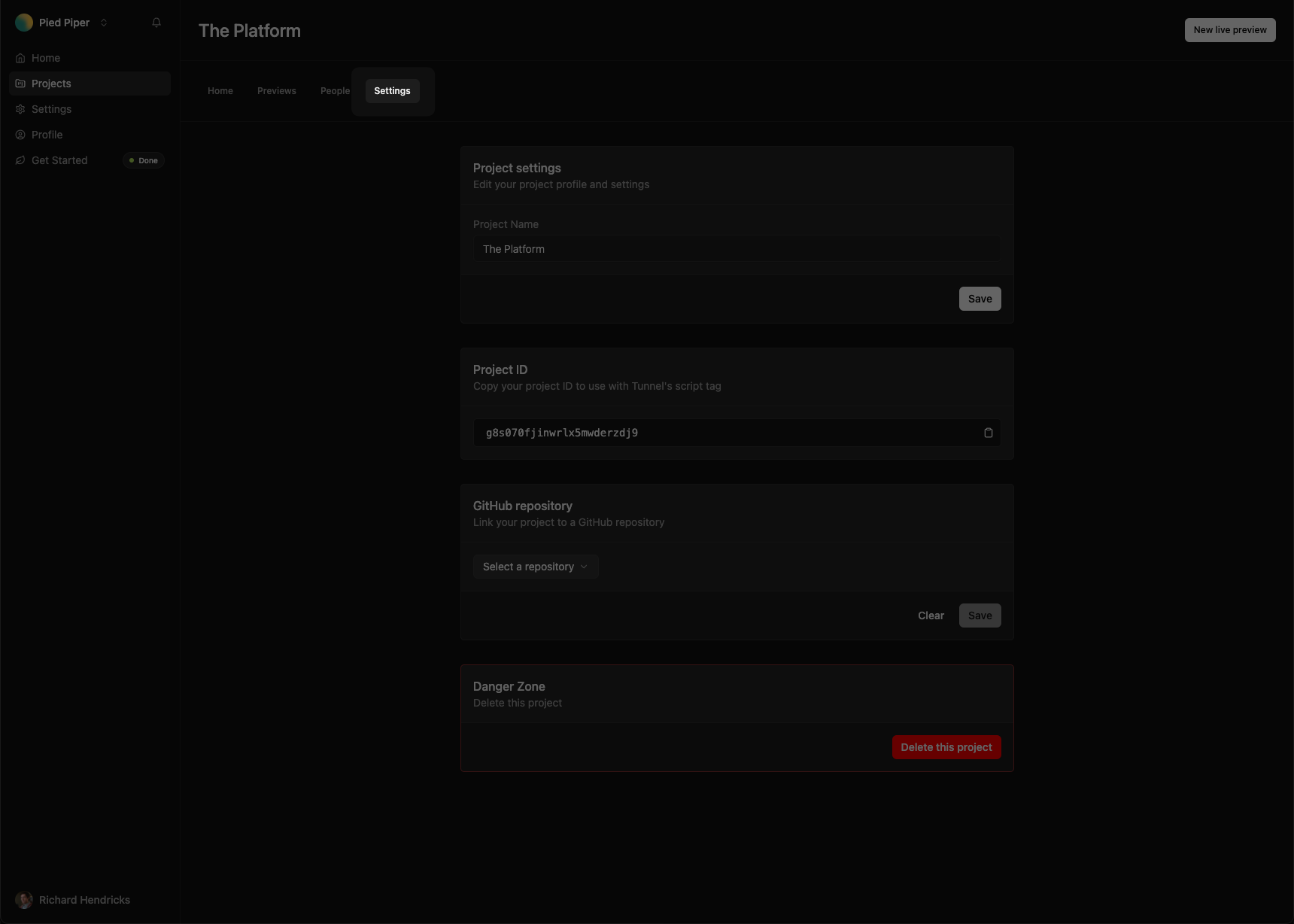
To link a channel to a project, navigate to
[**Projects**](https://tunnel.dev/projects) and select the project you want
to link a channel to. Navigate to the **Settings** tab.
## Link Slack channels to projects
With your Slack organization connected, you can link channels to projects in Tunnel.
To link a channel to a project, navigate to
[**Projects**](https://tunnel.dev/projects) and select the project you want
to link a channel to. Navigate to the **Settings** tab.
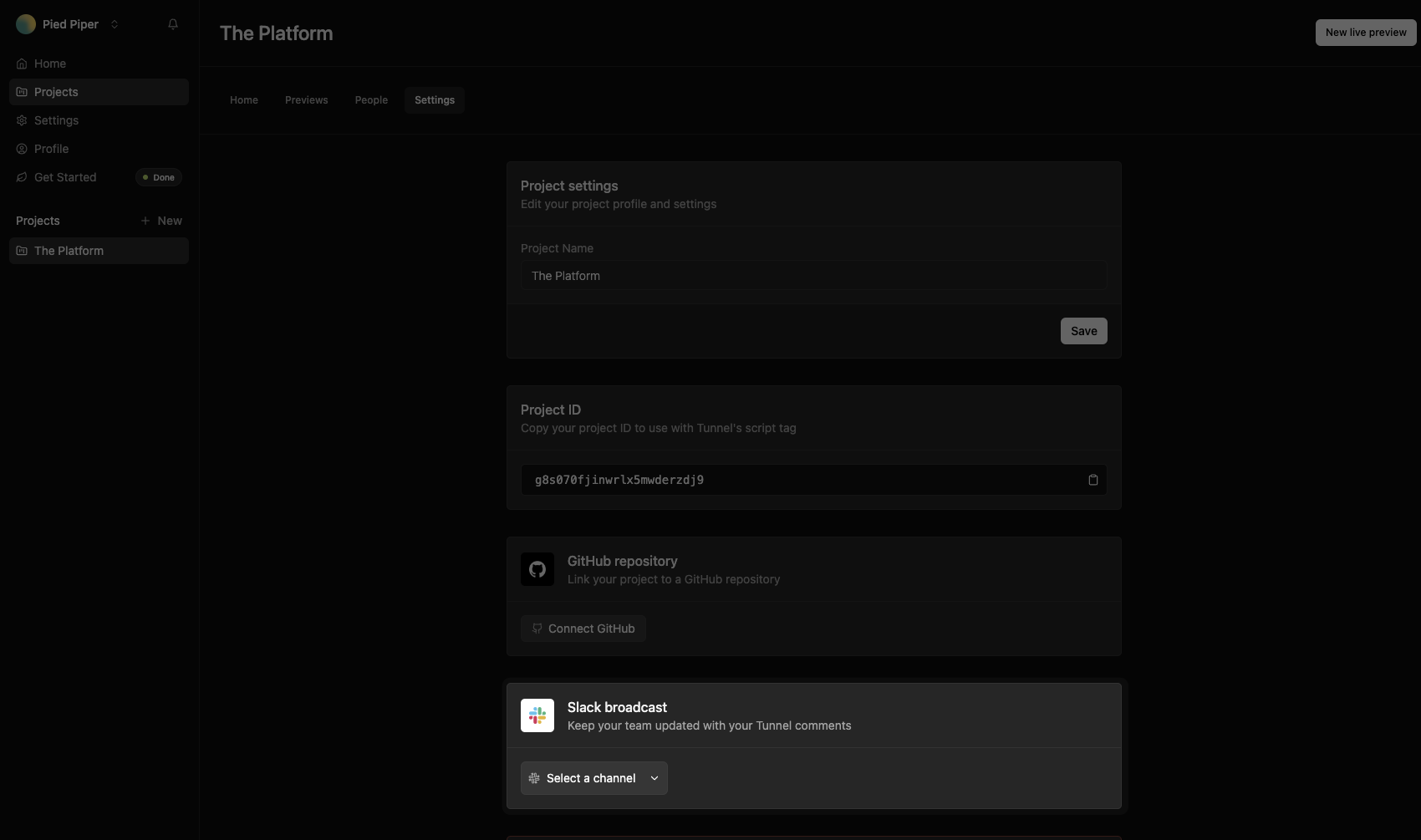
 Scroll down to the **Slack channel** section and select the repository
you want to link to the project.
Scroll down to the **Slack channel** section and select the repository
you want to link to the project.
 ## Creating broadcasts
Once a channel is linked to a project, Tunnel will send a broadcast for each new comment in the linked Slack channel.
## Creating broadcasts
Once a channel is linked to a project, Tunnel will send a broadcast for each new comment in the linked Slack channel.
 ### Synced threads
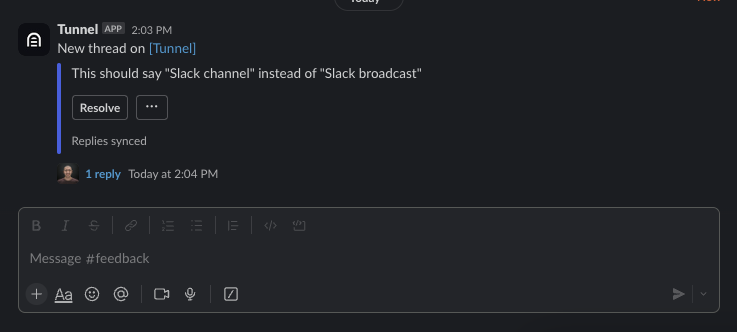
Replies to broadcasts in Slack will be synced back to Tunnel and vice versa, allowing you to respond to feedback directly from Slack.
### Synced threads
Replies to broadcasts in Slack will be synced back to Tunnel and vice versa, allowing you to respond to feedback directly from Slack.